
.jpg)

.svg)
.svg)
.svg)
Every email you send makes a quiet choice before it ever reaches an inbox. That choice decides whether the message is trusted, delayed, or filtered out without notice.
An SMTP server sits at the center of that decision. It controls how an email is sent, where it is routed, and how receiving servers judge its legitimacy.
Understanding this process explains why some emails land cleanly in inboxes while others drift into spam. Let’s break down how this system shapes delivery outcomes at every step.
What Is an SMTP Server and What Problem Does It Solves?
Every email begins as a simple action, but sending it requires a structured system behind the scenes. That system decides how the message leaves, where it goes, and whether it is accepted by the next server.
An SMTP server is responsible for this entire sending process. It acts as the controlled gateway that moves an email from the sender to the recipient’s mail system using shared rules.
The Core Problem SMTP Solves
Email needs a reliable way to travel between systems that do not belong to the same network. Without a standard process, messages would fail, stall, or arrive inconsistently.
An SMTP server solves this by providing structure and accountability at the sending stage.
What an SMTP Server Handles
- Sending coordination: It receives emails from apps, websites, or email clients and prepares them for delivery.
- Server-to-server transfer: It passes the message to the recipient’s mail server using agreed technical rules.
- Basic trust signals: It applies checks that help receiving servers decide whether the email should be accepted.
Where SMTP Servers Are Used
SMTP servers operate quietly across everyday communication.
- Personal emails sent from Gmail or Outlook
- Password reset and login emails from websites
- Order confirmations and alerts from online stores
- Campaign emails sent through marketing platforms
Example of configuring Outlook SMTP settings
When a banking app sends a transaction alert, the message first reaches an SMTP server. That server validates the sender, routes the email correctly, and delivers it to the customer’s mail provider. Without this step, the alert never leaves the app’s system.
Understanding this sending role sets the foundation for the rules SMTP follows, which leads directly to the Simple Mail Transfer Protocol and how it governs email delivery.
The Role of Simple Mail Transfer Protocol in Email Sending
Once an SMTP server exists, it still needs a shared language to operate. Simple Mail Transfer Protocol provides that language by defining how email is submitted, transferred, and acknowledged between systems.
SMTP does not decide whether an email is good or bad. Its role is procedural, it ensures that every step of the sending process follows a predictable sequence that other mail servers understand.
What Simple Mail Transfer Protocol Defines
SMTP governs behavior, not outcomes. It standardizes how systems communicate during email transfer.
- Submission rules: How an email is formally handed from an application to a sending server.
- Command structure: The exact instructions servers use to exchange messages.
- Response signals: Standard replies that indicate acceptance, delay, or rejection.
- Transfer order: The sequence that keeps email movement controlled and traceable.
Why This Protocol Matters at the Sending Stage
Email delivery depends on cooperation between independent systems. SMTP ensures those systems can interact without custom logic or assumptions.
- It prevents mismatched expectations between sending and receiving servers.
- It keeps message transfer consistent across providers and networks.
- It allows servers to fail gracefully instead of silently dropping messages.
Example
When a website sends a login link, SMTP defines the request and response exchange between the sending server and the recipient’s mail provider. Without this shared protocol, the message cannot be reliably transferred, regardless of server quality.
SMTP defines how an email leaves one system and reaches another, but it is only one part of the full delivery process.
To see where its responsibility ends, it helps to compare SMTP with the protocols that handle email after delivery. That contrast brings clarity to how email sending and inbox access work together.
SMTP vs POP3 vs IMAP in the Email Delivery Process
Email delivery does not rely on a single system from start to finish. Different protocols handle different stages, and each one has a clearly defined role.
SMTP is responsible for sending an email out of a system. POP3 and IMAP take over only after the message reaches the recipient’s mail server. Seeing them side by side removes much of the confusion around how email actually works.
Key distinctions that matter in practice
- SMTP pushes emails outward, it never manages inbox access.
- POP3 pulls emails from the server to a single device.
- IMAP keeps emails on the server and syncs changes across devices.
- Delivery issues usually begin during SMTP, not during POP3 or IMAP.
Understanding this separation helps explain why inbox problems often trace back to sending behavior rather than inbox settings. With the roles clearly defined, the next step is examining the technical layer that supports SMTP communication, starting with the ports it relies on.
Common SMTP Ports and Their Purpose
SMTP ports decide how an email connects to a mail server and what kind of security is used during sending. The right port keeps sending stable, secure, and accepted by most providers.
Most email tools only ask for a port number, but that number controls whether the connection is blocked, encrypted, or treated as suspicious.
1. Port 25
Port 25 is the traditional port for server to server mail transfer. Many internet providers restrict it to reduce spam and abuse.
Best used for
- Mail server to mail server delivery inside controlled infrastructure
- Relaying between trusted servers
Common issues
- Blocked by ISPs on home or office networks
- Not recommended for app to server email submission
2. Port 587
Port 587 is the modern standard for sending email from an app or email client to a mail server. It supports authentication and encryption, which makes it the safest default for most setups.
Best used for
- Email clients like Outlook, Apple Mail, Thunderbird
- Marketing tools and websites sending through an SMTP provider
Common issues
- Authentication errors when username, password, or TLS settings are wrong
3. Port 465
Port 465 is commonly used for SMTP over SSL. It is widely supported, but it is typically chosen when a provider specifically recommends it.
Best used for
- SMTP sending that requires an SSL based connection from the start
- Setups where 587 is not available or not supported
Common issues
- Connection failures if SSL is enabled on the wrong port settings
Example of dealing with UCEPROTECTL1 Blacklist
A marketing tool configured with Port 25 may show emails as sent, but delivery fails because the network blocks that port. Switching to Port 587 with authentication usually restores sending immediately.
Once ports are clear, the next step is seeing how SMTP interacts with email routing and server handoffs, which explains where emails go after the first connection is made.
How Simple Mail Transfer Protocol Handles Email Routing?

Routing is the part of sending where an email is matched with the correct destination server. SMTP handles this by using the recipient’s domain and passing the message to the right mail server through a series of controlled handoffs.
SMTP does not guess where an email should go. It follows a lookup and transfer process that relies on DNS records and server responses.
How SMTP Routing Works in Practice
- Domain check: The sending server reads the part after the “@” to identify the recipient’s domain.
- MX lookup: It queries DNS to find the mail servers responsible for receiving email for that domain.
- Server selection: It chooses a target server based on priority rules returned by the MX records.
- Handoff attempt: It connects and transfers the message using SMTP commands and waits for acceptance.
- Fallback behavior: If the first server fails, it tries the next option or queues the message for retry.
What Controls the Route
Routing depends on a few key entities that work together.
- DNS: Stores the records that tell senders where to deliver mail.
- MX records: List the receiving servers for a domain and their priority.
- SMTP responses: Confirm whether a receiving server accepts, defers, or rejects a message.
Example
You send an email to name@company.com. Your SMTP server checks company.com, pulls its MX records, and sends the message to the highest priority receiving server. If that server is unavailable, the email is retried or routed to the next listed server.
Once routing is clear, the next part is understanding how SMTP fits alongside other email protocols during delivery, and where its role ends after the handoff is complete.
How SMTP Servers Communicate With Other Email Protocols?
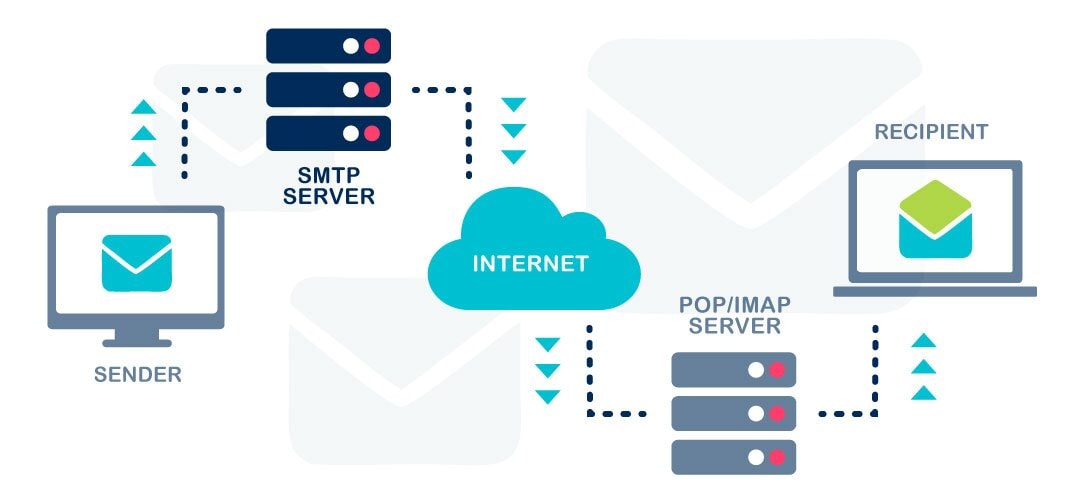
SMTP’s role ends the moment an email is successfully delivered to the recipient’s mail server. From that point onward, different protocols take over to handle storage and user access.
This is not a shared operation. Each protocol works in its own phase, passing control forward without overlap.
How the Handoff Happens in Real Systems
- SMTP completes delivery: The sending server transfers the message to the recipient’s mail server and receives confirmation.
- Message storage begins: The receiving server places the email into the correct mailbox.
- Access protocols activate: IMAP or POP3 allow the user’s email app to retrieve or sync that stored message.
SMTP does not stay involved once delivery is complete. It does not manage inbox views, device sync, or message organization.
Why This Separation Matters
Clear boundaries keep email systems reliable and scalable.
- Sending and access operate independently, which prevents failures from spreading across stages.
- Delivery confirmation remains distinct from user interaction.
- Inbox behavior stays consistent across devices without affecting sending logic.
Example
An email is delivered to a mail server through SMTP at 10:00 AM. At 10:05 AM, the user opens their inbox on a phone. IMAP accesses the already stored message. SMTP is no longer involved at this stage.
With this handoff clear, the focus can now shift from understanding behavior to execution, starting with how to set up an SMTP server correctly for real sending environments.
SMTP Server Use Cases for Transactional and Marketing Emails

Email sending patterns change based on intent. Some messages are triggered by a user’s action, while others are sent to build ongoing engagement. SMTP servers support both, but the expectations around speed, volume, and consistency differ.
Understanding these use cases helps explain why SMTP setup and behavior matter beyond basic delivery.
Transactional Email Use Cases
Transactional emails are event driven and time sensitive. They are sent when a user expects an immediate response.
- Password resets and login links
- One-time passwords and account verification emails
- Order confirmations and shipping updates
- Payment receipts and invoice notifications
- Security alerts and support responses
These emails prioritize reliability and speed, because delays directly affect user experience.
Marketing Email Use Cases
Marketing emails are planned and repetitive. They are sent to groups of recipients and judged over time based on consistency and engagement.
- Newsletters and product announcements
- Promotional campaigns and limited-time offers
- Onboarding sequences and drip campaigns
- Re-engagement emails for inactive users
- Event invites and webinar reminders
These emails depend on stable sending patterns to maintain long-term trust with mailbox providers.
Example
A password reset email must arrive within seconds to be useful. A weekly newsletter succeeds by arriving consistently without triggering spam filters. Both rely on SMTP, but they demand different sending discipline.
With these use cases defined, the next focus is execution, starting with the core steps required to set up an SMTP server correctly.
Steps to Set Up an SMTP Server Correctly
SMTP setup looks different depending on whether you are working inside a marketing tool or configuring your own server. The steps below keep both paths clear so you can follow the one that matches your sending environment.
SMTP Server Setup Using Marketing Tools
Most marketing platforms guide you through SMTP settings, but the details still matter because small configuration gaps affect sending performance.
1. Select a Built-In SMTP or Email Service Provider
Choose the built-in option when available, or connect a trusted email service provider for sending.
2. Confirm the Default SMTP Host and Port
Match the host and port to the provider’s recommended settings, 587 is the most common for authenticated sending.
3. Enable Authentication Inside the Tool
Turn on SMTP authentication so the server can verify that the sender is authorized.
4. Turn On Encryption Settings
Enable TLS to protect message transfer during sending.
5. Verify Sending Domains
Verify the domain used in the “from” address so it aligns with your authenticated identity.
6. Configure SPF, DKIM, and DMARC Records
Add the required DNS records to support trust and reduce spam filtering.
7. Send Test Campaigns and Monitor Deliverability
Run test sends to different inbox providers and track bounces, spam placement, and delays.
Custom SMTP Server Configuration
Custom setup gives more control, but it also requires tighter security and monitoring to avoid delivery issues.
1. Choose and Install an SMTP Server Application
Select an SMTP server package and install it on a secured host environment.
2. Define the SMTP Host Name and Listening Port
Set the server hostname and configure ports based on your use case, 25 for server transfer, 587 or 465 for submission.
3. Enable SMTP Authentication Mechanisms
Require authentication so only approved users and systems can send mail.
4. Configure TLS or SSL Encryption
Set TLS policies to encrypt traffic during message transfer.
5. Create and Secure SMTP User Credentials
Create users with strong passwords and limit permissions based on sending needs.
6. Set Up SPF, DKIM, and DMARC Records
Publish DNS records that prove identity and protect domain reputation.
7. Test Server Connectivity and Monitor Logs
Validate connection and delivery, then track logs for rejections, bounces, and abnormal sending patterns
How To Choose the Right Setup Path
Use one quick decision rule before you start.
- If you send campaigns from an email platform, follow the marketing tool setup.
- If you manage infrastructure or host email services, follow the custom server setup.
Now that setup is clear across both paths, the next step is hardening the sending system so it stays secure, stable, and trusted over time.
Steps to Secure an SMTP Server for Reliable Email Delivery
SMTP security is not just about protecting servers. It also protects deliverability, because mailbox providers watch sending behavior and trust signals closely. A secure setup reduces abuse risk and keeps sending patterns stable.
Use these steps as a practical checklist. Each one strengthens trust while lowering the chance of spam filtering.
1. Enable TLS or SSL Encryption
Enable encryption so credentials and message transfers are protected during sending. This also aligns your setup with what most providers expect for authenticated SMTP.
2. Require SMTP Authentication
Require login based sending so only approved users, apps, and systems can send through the server. This prevents anonymous sending and reduces misuse.
3. Restrict Open Relay Access
Disable open relaying and restrict who can relay mail through your server. Open relays are quickly exploited and often lead to blacklisting.
4. Configure SPF, DKIM, and DMARC
Publish authentication records so receiving servers can verify identity and filter spoofed mail.
What each record supports
- SPF: Authorizes which servers can send for your domain.
- DKIM: Adds a signature that proves the message was not altered.
- DMARC: Tells providers how to handle failed authentication.
5. Limit Sending Rates and Connections — It's also important to ensure your email delivery is set up correctly; see our Essential Guide to Configuring Office 365 MX Records for Your Domain.
Set sending limits to prevent sudden spikes that look suspicious to mailbox providers. Rate control also reduces the impact of compromised credentials.
6. Monitor Server Logs and Alerts
Track bounces, rejects, repeated login failures, and unusual sending volume. Logs show patterns before they turn into deliverability damage.
7. Keep SMTP Software Updated
Apply security updates regularly to reduce exposure to known vulnerabilities. Stable software also prevents avoidable sending errors.
Example
A server with correct ports and credentials can still land in spam if it sends too fast or lacks DKIM. Security and deliverability move together, and the details decide outcomes.
With your SMTP server secured, the next step is learning how to diagnose the common errors that still interrupt sending, and how to fix them without guesswork
Steps to Fix Common SMTP Server Errors
Most SMTP errors come from a small set of misalignments, wrong settings, blocked connections, or failed authentication. The fastest way to fix them is to troubleshoot in a clean order, starting with the basics and moving toward deeper checks.
Use this sequence to avoid chasing symptoms.
1. Verify SMTP Host and Port Settings
Match the SMTP host and port to the provider or server you are using. One incorrect digit can break sending even when everything else is correct.
Quick check
- Host matches the provider’s SMTP address
- Port matches the intended mode, 587 for TLS, 465 for SSL, 25 for server transfer
2. Check Username and Password Credentials
Credentials fail more often than people expect, especially after password changes, account migrations, or permission updates.
- Re-enter credentials to remove saved typos
- Confirm the account is allowed to send from the selected domain
- Use app passwords if the provider requires them
3. Confirm Encryption Compatibility
Encryption issues show up when port, TLS, and SSL settings do not match.
Make sure these align
- Port 587 with TLS
- Port 465 with SSL
- Encryption turned off only when a provider explicitly supports it
4. Inspect Firewall and Network Restrictions
SMTP can fail even with perfect settings if the network blocks the connection.
What to check
- Hosting firewall rules
- Office or ISP blocks on Port 25
- Outbound SMTP restrictions in cloud environments
5. Validate DNS and MX Records
DNS issues usually cause delivery failures after sending succeeds. This includes missing MX records for receiving domains or misconfigured authentication records for sending domains.
Focus on
- MX records for the recipient domain
- SPF, DKIM, and DMARC for your sending domain
6. Review Bounce Messages and Error Codes
Bounce details point to the real failure stage, authentication, reputation, or mailbox policy. For a deeper understanding of how email systems work, including protocols like IMAP, treat the bounce message as the most reliable clue in the system.
Look for
- Authentication failures
- Rate limit or policy blocks
- Temporary deferrals vs permanent failures
7. Test SMTP Connection Manually
A direct connection test confirms whether the server is reachable and whether it accepts authentication. This step separates network failures from application errors.
Example
An email tool may show a generic “sending failed” error. If the port is correct but TLS is off, the server may refuse the connection. Switching to TLS on Port 587 often resolves the issue in minutes.
Once SMTP errors are handled in a structured way, the sending system becomes predictable, which sets up stronger delivery outcomes across both transactional and marketing email.
Conclusion
Email delivery improves when sending decisions are treated as systems, not guesses. Small choices around setup, authentication, routing, and security compound into consistent inbox outcomes over time.
Use this understanding to audit how your emails are sent, not just what they say. When the sending foundation is solid, delivery becomes predictable, and everything built on top of it performs better.


.jpg)


.jpg)
