.jpg)

.svg)
.svg)
.svg)
That email you meant to follow up on is already buried. Not because it was unimportant, but because Gmail kept moving and you did not step in.
When follow ups rely on memory, timing slips. Replies arrive late or not at all, and conversations lose urgency without anyone noticing.
Reminder emails change that rhythm. They bring messages back at the exact moment action is needed, which is where Gmail’s built-in tools quietly make the difference.
Why Not Sending Reminder Emails In Gmail Leads To Missed Follow Ups?
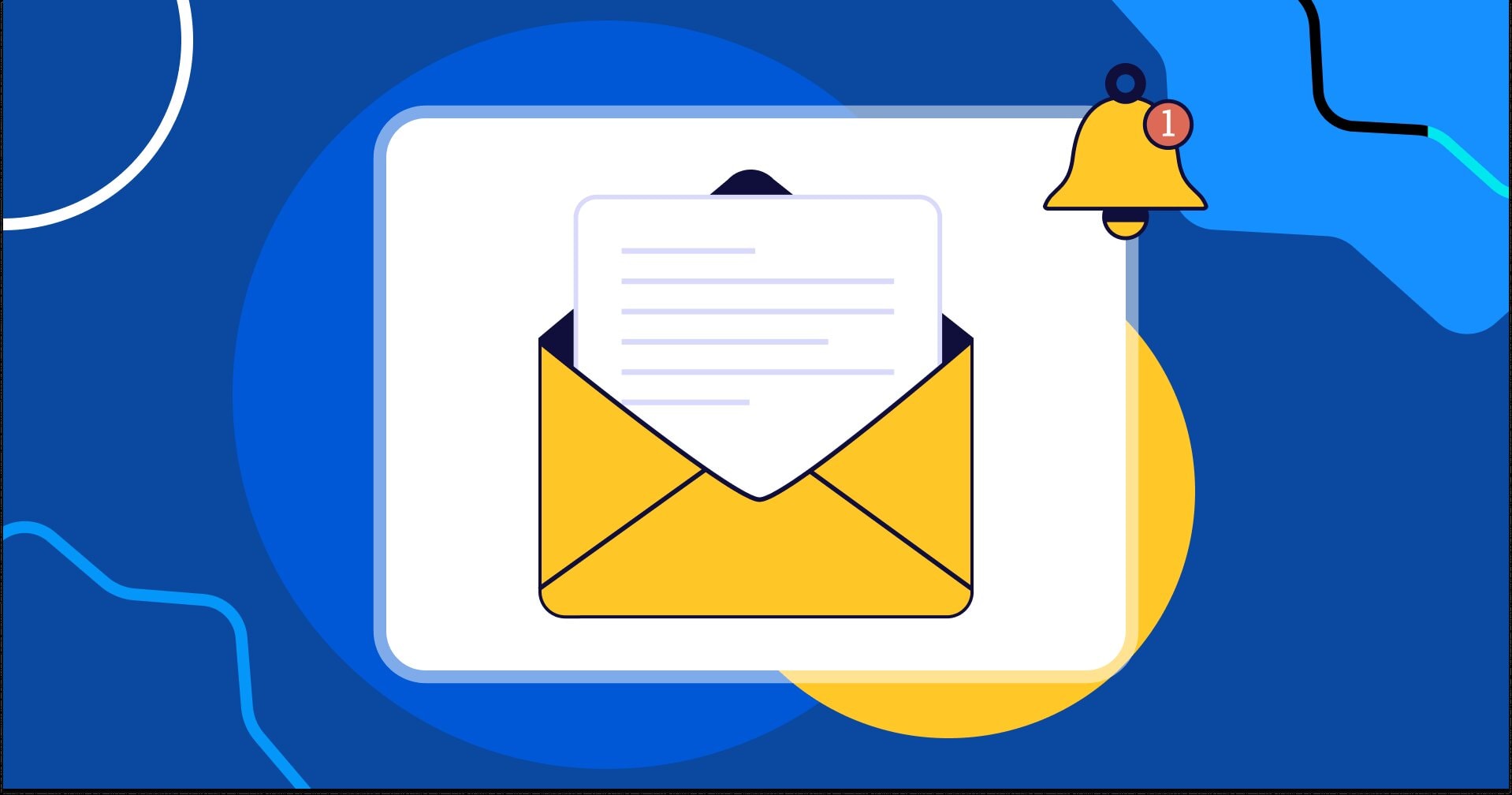
In Gmail, conversations fade because there is no built-in pressure to act later. Once an email drops below the fold, intent weakens and timing breaks.
Follow ups fail quietly when there is no system to surface them again at the right moment.
What actually goes wrong
- Timing erodes: the reply window passes while the thread stays buried.
- Context decays: by the time you return, the reason for the follow up feels distant.
- Priority blurs: urgent and optional messages look the same in a crowded inbox.
- Memory takes over: action depends on recall instead of a trigger.
Where this shows up most
- Client conversations: proposals are sent, but the next nudge arrives after interest cools.
- Hiring or admissions: documents go out, yet reminders come too late to move decisions.
- Internal work: small asks slow projects because no one circles back on time.
Why reminders fix the problem
- They reintroduce the message at the exact moment action is due.
- They protect context by shortening the gap between send and follow up.
- They replace memory with a predictable system.
Once the cause is clear, the solution becomes practical, using Gmail’s built-in features to schedule reminder emails that surface conversations before they go cold.
Steps To Send A Reminder Email In Gmail Using Built-In Features
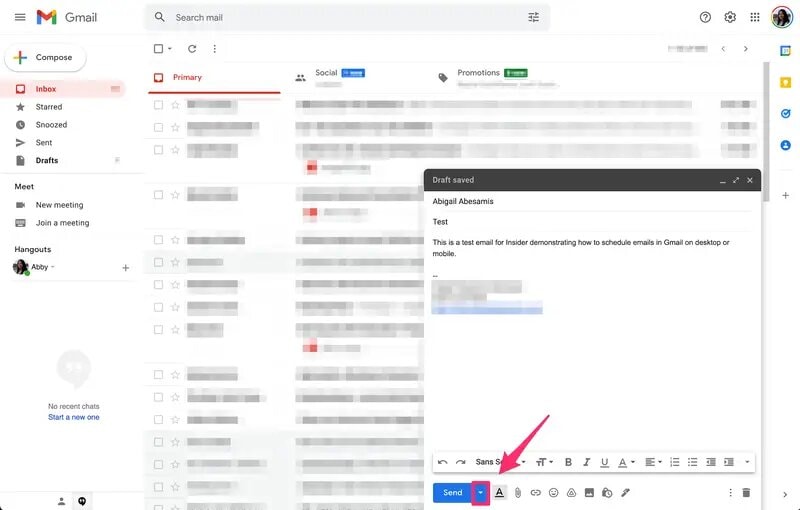
Sending a reminder email in Gmail relies on Schedule Send, the built-in feature that lets you write a follow up once and deliver it automatically when timing matters most, without depending on memory or manual tracking.
1. Compose A New Email Or Open An Existing Thread
Start inside the same thread when the reminder relates to an ongoing conversation. It keeps context, and the recipient sees the full history.
Compose a new email only when the reminder is about a fresh request or a new decision.
Use an existing thread when:
- The reminder refers to a previous email, file, or promise.
- You want the subject line and history to stay connected.
- You want the reply to land in the same conversation.
Compose a new email when:
- You need a new subject line for clarity.
- The reminder goes to a different person.
- The topic has shifted to a new task.
2. Write Your Reminder Message
A reminder email works best when it contains one clear action. It should also make the next step easy to complete.
Include:
- One sentence of context, so the recipient remembers the thread.
- One direct ask, so the reply is simple.
- One deadline or timing cue, so it feels timely.
Example line that stays polite and clear:
“Sharing a quick follow up on this, can you confirm by tomorrow afternoon?”
3. Click The Schedule Send Arrow
This step is where Gmail turns your reminder into a timed follow up. The message stays in your control until the chosen time.
Look for:
- The small arrow next to the Send button on desktop.
- The Schedule send option in the menu on mobile.
4. Choose A Date And Time For The Reminder Email
Pick a time that matches how people actually read email. Timing should support action, not just delivery.
Good timing patterns:
- Business hours, when replies are more likely.
- The next morning after sending documents.
- Two business days after a proposal or pricing email.
Quick examples
- Proposal sent Monday, schedule Wednesday 11:00 AM.
- Documents sent late evening, schedule next day 10:30 AM.
- Meeting recap sent, schedule next day 3:00 PM.
5. Confirm And Schedule The Reminder Email
This is the final commit. Once scheduled, the reminder will send automatically unless you edit or cancel it.
Before confirming, check:
- The recipient list, especially in long threads.
- The ask, it should be one action.
- The time zone, if you work with people in other regions.
6. Verify The Scheduled Email In Gmail
Verification ensures your reminder is actually queued. This is the quick safety step that prevents silent misses.
Where to check:
- Scheduled folder on desktop.
- Scheduled label in the Gmail app.
What to confirm: See this comprehensive guide on how to write reminder emails for best practices and templates.
- Correct time and date.
- Correct recipients.
- Correct thread or subject line.
What To Avoid
- Scheduling a reminder at a time you would never open email yourself.
- Adding multiple requests in one reminder, it splits attention.
- Using unclear asks like “just checking,” without a next step.
- Scheduling too far out, it reduces urgency and relevance.
Once scheduling is clear, the next layer is control, Gmail has other built-in tools that support reminders without sending a new email.
That is where Snooze, Nudges, Tasks, and Calendar fit, and why they are useful in different follow up situations.
4 Built-In Gmail Tools Other Than Schedule Send That Support Reminders
These tools do not send a reminder email later like Schedule Send. They support reminders by bringing messages back into view, prompting follow ups, or moving tasks into a system where deadlines stay visible.
1. Snooze
Snooze hides an email and returns it to the top of your inbox at a time you choose. It works best when the reminder is for you, not for the recipient.
Best Use
- Bring a thread back before you plan to reply.
- Surface a message after you expect a response.
- Park an email until a meeting or deadline.
Example
You send a proposal today, snooze the thread for two business days later, so you follow up while interest is still warm.
2. Follow-Up Nudges
Follow-up nudges are Gmail prompts that remind you about emails you sent that have not received a reply, or messages you opened but did not respond to. For more on timely responses, see the 24 Hour Email Rule.
Best Use
- Catch quiet threads you forgot to revisit.
- Notice missing replies without searching sent mail.
- Stay consistent without setting reminders manually.
What To Know
- Nudges are helpful, but they are not fully predictable.
- They work best as a backup, not as your main system.
3. Google Tasks Integration
Tasks turns an email into a trackable action item. It is useful when the follow up depends on a clear next step, not just a reminder.
Best Use
- Convert an email into a task with a due date.
- Track multi-step follow ups across several emails.
- Keep personal work separate from inbox noise.
Example
A client asks for a revised quote, you create a task due tomorrow, attach the email, and complete the task before scheduling the follow up.
4. Google Calendar Reminders
Calendar reminders work best when the follow up is tied to a specific time event, like a call, a deadline, or a delivery date.
Best Use
- Set a reminder before a meeting where the email matters.
- Nudge yourself to follow up on a promised date.
- Manage time-sensitive threads with clear timing.
Example
If someone says they will review by Friday, set a calendar reminder for Friday morning to follow up with the thread open.
Once these tools are clear, choosing the right method becomes simple, match the reminder type to the outcome you need, visibility, timing, or a tracked action.
Steps to Choose the Right Reminder Email Method in Gmail
Choosing the right reminder method in Gmail is about matching the action to the outcome. Some situations need a message to be sent later. Others only need the thread to resurface, so you can act at the right time.
1. Identify Whether The Reminder Is For You Or The Recipient
Start with intent, because it decides the tool.
If the reminder is for the recipient
- You need a scheduled email, so the nudge reaches them.
If the reminder is for you
- You need visibility, so the email comes back to your inbox.
Example
If you promised to follow up on Thursday, the reminder is for you. If you need their approval by Thursday, the reminder is for them.
2. Decide If The Reminder Needs To Be Sent Automatically
This step separates planning from execution.
Choose automatic sending when
- The reminder must go out even if you forget.
- The timing matters more than rechecking the thread.
Choose manual action when
- You need to review updates before following up.
- You want to adjust the message based on what happened.
3. Check How Time-Sensitive The Follow-Up Is
Time sensitivity changes how strict your reminder should be.
High time sensitivity
- Deadlines, approvals, meetings, payments.
- Use a method with a firm trigger, not a soft prompt.
Low time sensitivity
- Light check-ins, relationship building, casual updates.
- A gentle visibility reminder is usually enough.
Example
A payment follow up needs a fixed send time. A networking follow up can be snoozed to a convenient window.
4. Choose Between Snooze, Schedule Send, Or Nudges
Now pick the tool based on what you need to happen.
Schedule Send
- Best when the recipient must receive the reminder at a set time.
Snooze
- Best when you need the email back in your inbox before you act.
Nudges
- Best as a safety net for threads you forgot, not for planned follow ups.
5. Use Tasks Or Calendar For Multi-Step Follow-Ups
When a follow up has steps, a single reminder is rarely enough.
Use Tasks when
- You need a due date and a checklist style workflow.
- The follow up depends on completing work first.
Use Calendar when
- The follow up is tied to a meeting, delivery date, or time-based event.
- You need a reminder that fits your day, not just your inbox.
Example
If you must send a file, then follow up for approval, Tasks keeps the sequence clear. If the follow up depends on a call, Calendar keeps timing realistic.
With the method chosen, the next thing that matters is interface, Gmail handles these actions differently on mobile and desktop, and knowing where each option sits saves time when it counts.
Mobile vs Desktop: How Reminder Email Setup In Gmail Differs
Reminder emails work the same way across devices, but the setup experience does not. Gmail places key actions in different locations on mobile and desktop, which affects how quickly you can schedule, snooze, or verify reminders during real work moments.
The difference is not in capability, but in access. Desktop favors visibility and speed, while mobile prioritizes compact menus.
Knowing where each option lives helps you set reminders quickly, no matter the device, which leads naturally into avoiding the common mistakes that cause reminders to fail in practice.
Common Mistakes When Setting Reminder Emails In Gmail
Most reminder setups fail for simple reasons, the wrong tool, the wrong timing, or the wrong thread. These mistakes do not look serious in the moment, but they quietly delay replies and break follow up rhythm.
Mistakes That Reduce Replies
- Scheduling at low-attention hours: late night reminders get buried by morning inbox traffic.
- Choosing vague timing: “next week” feels safe, but it removes urgency and clarity.
- Writing more than one ask: multiple requests make the recipient delay the reply.
- Sending without context: reminders that skip the earlier reference feel random.
Mistakes That Break Tracking
- Starting a new thread unnecessarily: the recipient loses the earlier chain and misses the point.
- Scheduling to the wrong recipients: long threads often include people who no longer need the reminder.
- Not checking the Scheduled folder: a reminder can be queued with the wrong time and go unnoticed.
Tool Misuse
- Using Snooze when the reminder is for the recipient: Snooze only brings the email back to you.
- Relying on Nudges for planned follow ups: nudges are helpful prompts, not a dependable system.
- Skipping Tasks or Calendar for multi-step follow ups: complex follow ups need tracking, not only visibility.
Quick examples
- If you need approval by Friday, schedule the email to send Thursday morning.
- If you need to follow up yourself after a call, snooze the thread for the next work block.
When these mistakes are removed, reminder emails become predictable and easy to manage. That is what keeps follow ups warm, timely, and consistent, even when your inbox gets busy.
Conclusion
Following up works best when it is planned, not remembered. Gmail already gives you the tools to control timing, visibility, and intent, without adding complexity to your workflow.
Set the reminder once, trust the system to surface it, and move on to the next task with clarity. When follow ups are handled this way, conversations stay active, decisions move faster, and nothing important fades quietly out of view.